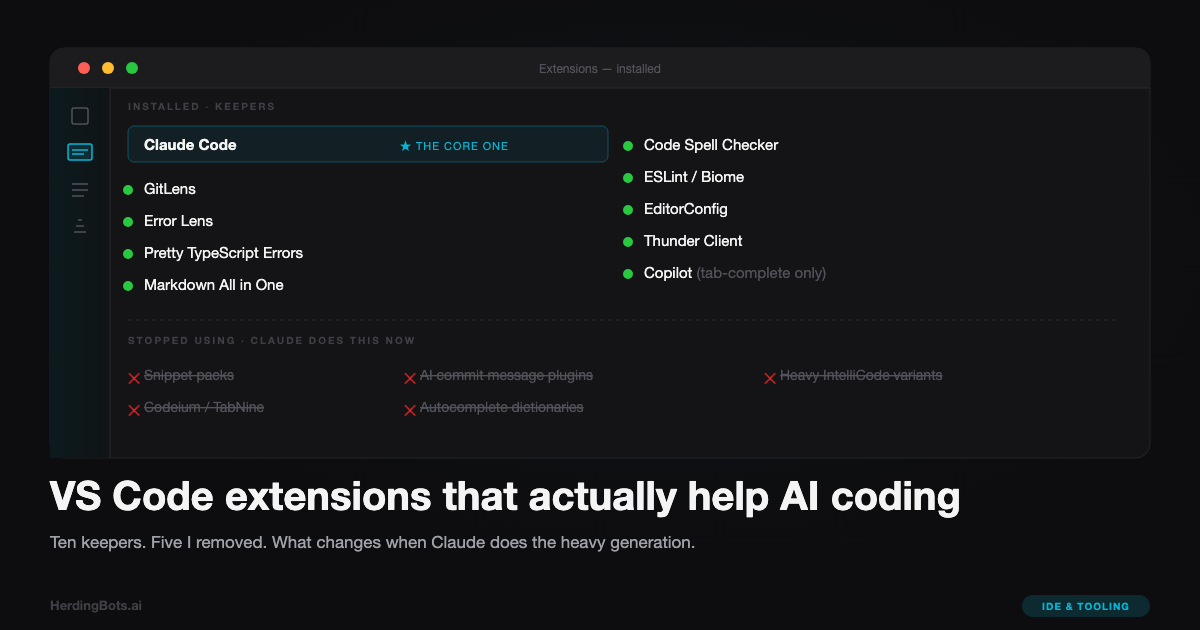
AI coding has changed what a “good” VS Code extension looks like. The autocomplete-era mindset — stack up every IntelliSense booster, every snippet pack, every AI-flavored plugin — is noise now. When Claude is writing the code, most of that surface area doesn’t help you. What helps is different.
The three things I actually need from an extension in an AI-heavy workflow are: diff clarity (seeing what the model changed, quickly), context visibility (understanding why the code around the change looks the way it does), and loop tightness (reducing the friction between “Claude proposed a change” and “it applied and I know it’s correct”).
Everything else is decoration. Here’s the short list I keep installed, what each one actually buys you, and the ones I’ve stopped using.
Claude Code for VS Code
The official extension. If you’re running Claude Code from the CLI and you’re not using the VS Code integration, you’re leaving real quality-of-life on the table.
What it gives you:
- A sidebar panel for starting and managing Claude Code sessions without a separate terminal
- Inline diff review — changes show up as native VS Code diffs, not wall-of-text output
- Keyboard shortcuts for accepting, rejecting, or editing proposed changes
- Context-aware file selection (the active editor becomes part of the implicit context)
The diff review is the big win. When Claude proposes a ten-file refactor, reading it as a proper diff inside the editor — with syntax highlighting, line numbers, and your normal keybindings — is dramatically better than scanning a terminal scrollback.
If you use Claude Code daily, install it.
GitLens
Still the right call. GitLens has been the default git-history extension for years, and it earns its slot in an AI-heavy workflow for a reason I didn’t expect.
When Claude makes a change in a file I wrote myself, I generally know whether the result matches intent. When Claude changes a file I didn’t write — a shared module, some utility code, a vendored file — I often need to reconstruct why the original code looked the way it did. Was that weird-looking check a workaround for a bug? A legacy constraint? An actual mistake?
Blame-at-cursor and file-history-at-cursor are the fastest way to answer that. A one-keypress “who wrote this line and why” is more useful when you’re reviewing AI changes than when you’re writing code yourself, because the review burden is higher.
Turn off the inline authorship badge if you find it noisy (I do). Keep the hover and the commands.
Error Lens
Inline diagnostics. Red and yellow squigglies aren’t enough when you’re reviewing AI-generated code — you want the message in the editor margin, right next to the offending line, so you notice it before you run the build.
This matters specifically because Claude’s output compiles about 95% of the time but not 100%. The failure modes are predictable: a missing import, a mistyped property name, a subtle type mismatch. Error Lens surfaces all of those the moment the edit lands. You see the problem before you kick off the tsc/bundler/test round-trip, which saves the 30-second cycle of “run, fail, paste error back to Claude, wait for fix.”
High signal-to-noise. On by default in every project now.
Pretty TypeScript Errors
If you’re in a TypeScript project, this is worth installing. The default TS compiler errors are often nested walls of conditional type output — the kind that takes a minute to parse even when you know what you’re looking for.
Pretty TypeScript Errors reformats them into something readable. AI tools can parse the raw errors just fine either way, but you’re reading them too. When Claude produces a type error and you need to decide whether the fix it’s proposing is actually the right one, a legible error is the difference between “I understand this” and “I’ll just trust the model.”
Skip if you don’t write TypeScript. Install otherwise.
GitHub Copilot or Cursor Tab (optional)
This one I’ve gone back and forth on. For a while I turned off all completion extensions because Claude Code was handling the larger chunks and tab-completion felt redundant. Then I turned it back on for single-line autocomplete and noticed I missed it more than I thought I would.
The mental model that works: think of tab-completion as the 30-character-at-a-time layer. Claude Code handles the “write this function” layer. Copilot or Cursor Tab handles the “finish this variable name, close this bracket, write the obvious next line” layer. They don’t overlap much.
If you have Claude Code, you don’t need Copilot for the heavy lifting. Keep it if you like the micro-completions, turn it off if you find yourself fighting its suggestions. Don’t install both.
Markdown All in One
Every CLAUDE.md, every prompt, every spec doc, every note you scribble into docs/ is Markdown now. Plain text editing of Markdown is a tax you don’t need to pay.
What this extension does that actually matters in an AI workflow:
- Keyboard shortcuts for headings, lists, bold/italic
- Table formatting (the one non-obvious thing — keeping a Markdown table aligned by hand is miserable)
- List auto-continuation
- Table of contents generation for longer CLAUDE.md files
I write more Markdown now than I wrote JavaScript five years ago. It’s the interface layer for every AI tool in my workflow. Don’t do it in raw text.
Code Spell Checker
Small, lightweight, catches typos in:
- Prompts and CLAUDE.md files (where a typo can genuinely change what the model understands)
- Commit messages
- Code comments and variable names
- Documentation
The CLAUDE.md angle is the under-appreciated one. If you write “deafult” instead of “default” in a CLAUDE.md section about naming conventions, the model might silently propagate the typo. Spell check in prose files catches that before it ships.
Add your project-specific vocabulary (library names, internal terms) to the workspace dictionary so it stops flagging them.
ESLint or Biome
Whichever your stack uses. If you’re not already running a linter, start one.
Claude writes syntactically correct code the overwhelming majority of the time. What it doesn’t always match is your house style — import ordering, quote style, trailing commas, arrow-vs-function preferences, the specific way your team handles unused variables. The model gets reasonably close by picking up cues from the surrounding code, but drift accumulates over enough edits.
Let the linter be the enforcer. Configure it once, turn on format-on-save, and every Claude edit goes through the same normalization your own edits do. The net effect: AI changes become indistinguishable from hand-written ones in terms of style, which matters enormously for code review.
Biome is faster and bundles linting + formatting. ESLint has the bigger rule ecosystem. Either works.
EditorConfig
.editorconfig is the root-of-trust for whitespace rules: indent size, tabs vs. spaces, line endings, trailing newlines. It lives at the repo root, and most editors (VS Code included, with this extension) respect it automatically.
Why this matters for AI coding specifically: Claude reads .editorconfig when it’s present and adjusts its output to match. No .editorconfig, and the model infers style from surrounding files — which works most of the time but occasionally produces a file with mixed indentation in a project that’s supposed to be 2-space-everything.
It’s a 10-line file. Add it to every project.
REST Client or Thunder Client
When Claude writes an API integration — an external service call, a webhook handler, anything that needs to actually hit a real endpoint — running the call from inside the editor beats context-switching to Postman or a separate tool.
REST Client lets you write .http files that look like this:
POST https://api.example.com/v1/things
Content-Type: application/json
Authorization: Bearer {{token}}

{
  "name": "test"
}
Run it with a keyboard shortcut. See the response inline. Save the file to the repo (gitignored if it has secrets, or with env-var references if not).
Thunder Client is similar but has a GUI and is slightly lighter on the editor. Pick whichever fits your taste. Either one keeps the API-testing loop inside the IDE, which keeps Claude’s attention on the same code you’re debugging.
The short table
| Extension | What it buys you |
|---|---|
| Claude Code for VS Code | Inline diff review, sidebar, keyboard shortcuts |
| GitLens | Blame/history-at-cursor for reviewing AI changes in unfamiliar code |
| Error Lens | Inline diagnostics before you run the build |
| Pretty TypeScript Errors | Readable compiler errors (TS projects) |
| Copilot or Cursor Tab | Single-line micro-completions below Claude’s threshold |
| Markdown All in One | Shortcuts and table formatting for CLAUDE.md and docs |
| Code Spell Checker | Typo safety net in prompts, CLAUDE.md, commits |
| ESLint / Biome | House-style enforcement on AI-generated code |
| EditorConfig | Whitespace rules Claude will respect |
| REST Client / Thunder Client | In-editor API testing |
Stopped using
The more interesting list. A few extensions I removed after going Claude-heavy:
Autocomplete dictionaries and snippet packs. Every language-specific snippet collection I used to install — React snippets, TypeScript snippets, CSS snippets, the works. Claude writes the snippet. Faster than I can pick one from a menu, correct for the specific context, and doesn’t clutter IntelliSense with fifty variants of the same boilerplate. Gone.
“AI commit message” plugins. Several extensions will look at your staged diff and propose a commit message. Claude does this in the same session where it made the changes, and the context is richer because it knows why it made them, not just what changed. Duplicate effort.
Heavy IntelliCode variants. The ML-ranked autocomplete from the pre-LLM era. It’s noise on top of noise now — suggestions that were impressive in 2020 but feel like a sluggish typeahead compared to modern completion. I turn off IntelliCode entirely in projects where I have Claude Code or Copilot active.
Codeium, TabNine, and similar. Not a knock on them — they’re solid products. They’re just redundant in a Claude Code workflow. Two completion engines fighting for the suggestion slot is worse than one. Pick a lane.
“AI code reviewer” extensions. The ones that promise to review your PR with a different model in a sidebar panel. I’ve tried a few. In practice, if I want a second opinion on a change, I paste it into Claude with a specific prompt — which is more flexible and doesn’t require yet another extension to configure.
Closing
Less is more. Ten focused extensions beat fifty. Claude is doing the heavy generation; the extensions just need to make the result legible and the loop tight.
The pattern across the whole list is the same: every surviving extension is doing something Claude can’t — making your git history legible, surfacing diagnostics in-place, enforcing style mechanically, providing fast API feedback. Everything I removed was duplicating work Claude already does, usually worse.
Audit your extension list once a quarter. Every AI-era tool you install shifts what’s worth keeping, and stale extensions accumulate faster than you’d think.
For the settings side of this — what to configure inside VS Code once you have the extensions installed — see Configuring settings.local.json for VS Code + Claude Code.